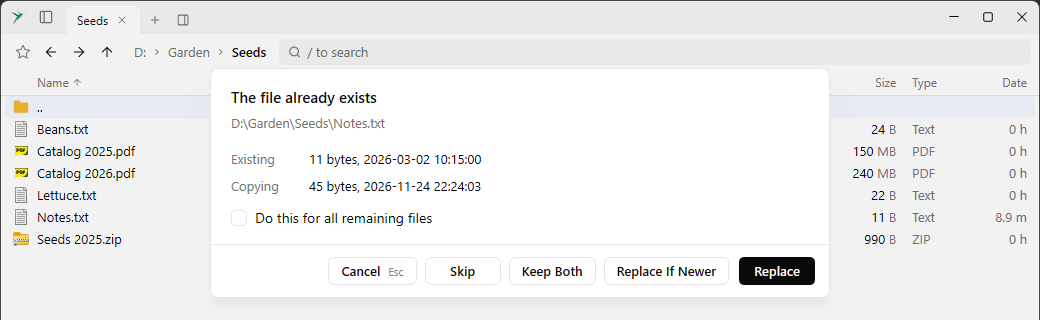
Replace, skip or keep both
A copy or move asks what to do when a file is already there, showing the size and date of both: Skip, Keep Both, Replace If Newer or Replace, optionally for all remaining files. A folder that is already there is merged. A replaced file is only removed once the new one is complete.
Select by pattern
Num + and Num - select and deselect rows by wildcards or filter words, Num * inverts the selection, Alt + Num + selects files with the same extension and Num / restores the selection from before the last file operation. Insert marks a row and moves down.Multi-Rename
Multi-Rename (
Ctrl + M) renames many files by rules, with a preview: name and extension masks with counters, dates and parts of the name, find and replace with regular expressions, case changes, or editing the names as text. Undo Multi-Rename puts the names back.
Create Archive
Create Archive (
Alt + F5) puts the selected files and folders in a new .zip, .7z, .tar, .tar.gz, .tar.bz2, .tar.xz or .tar.zst archive. If something goes wrong, or you cancel, no archive is left behind.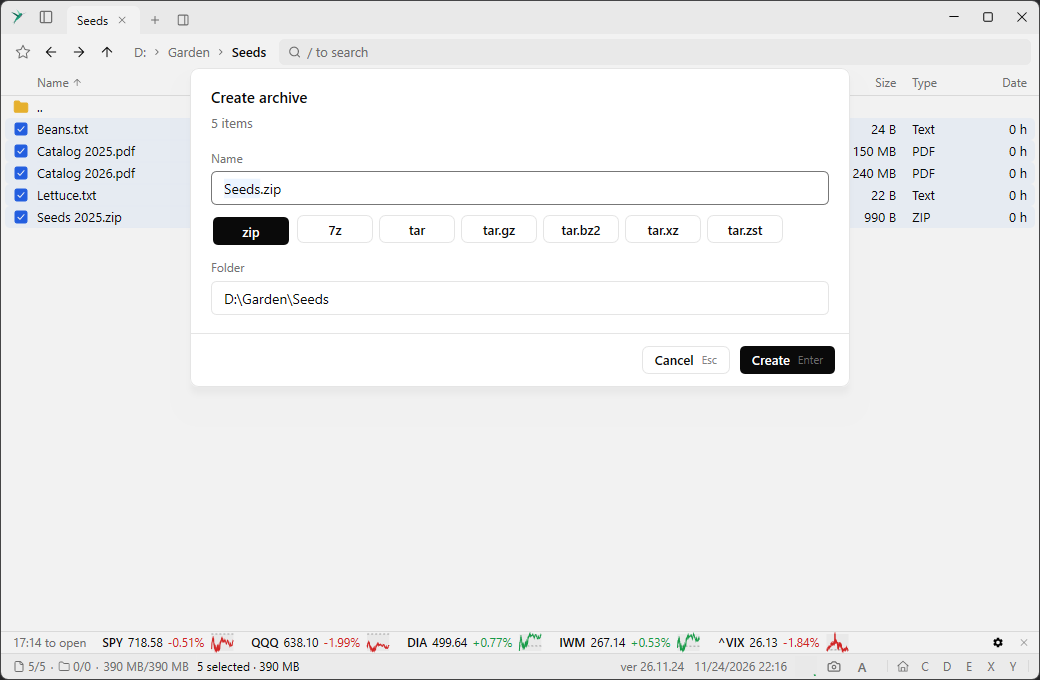
Your own keys and commands
KeyBindings in settings.txt changes the key of any command, also with arguments such as kill-process-by-name chrome.exe. UserCommands adds your own commands to the command palette, with %F, %S, %P and other placeholders for the current file, the selection and the folders.Compare Files
Compare Files opens a window with the differences between two files, side by side or in one column, with what didn’t change folded.
F8 and Shift + F8 go to the next and the previous change. Binary files are compared byte by byte, and files can be on any file system.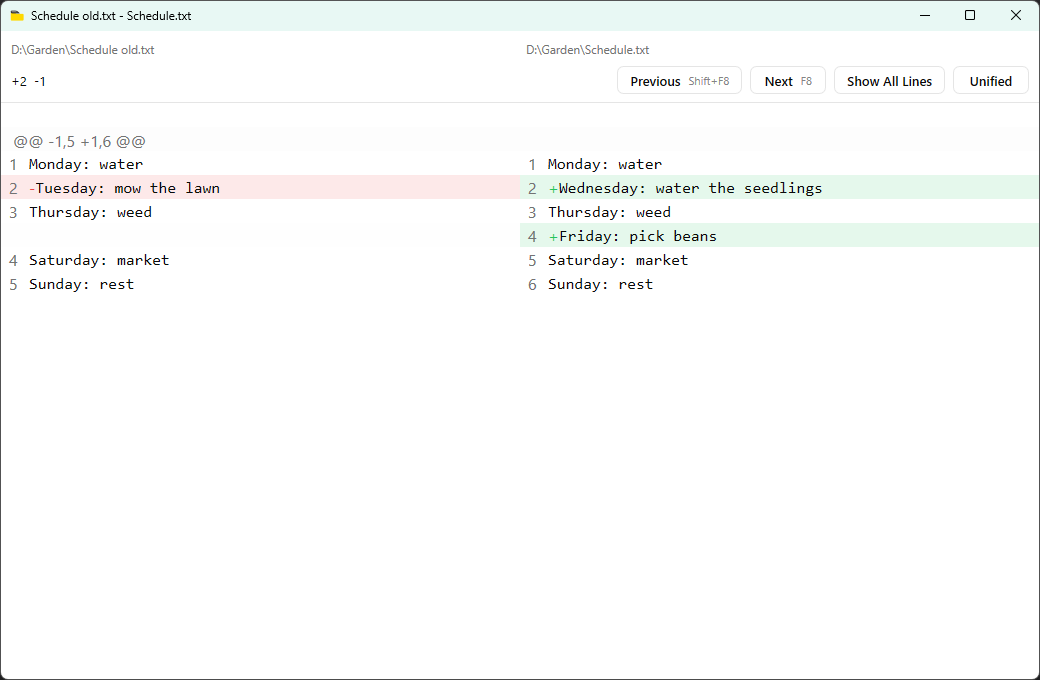
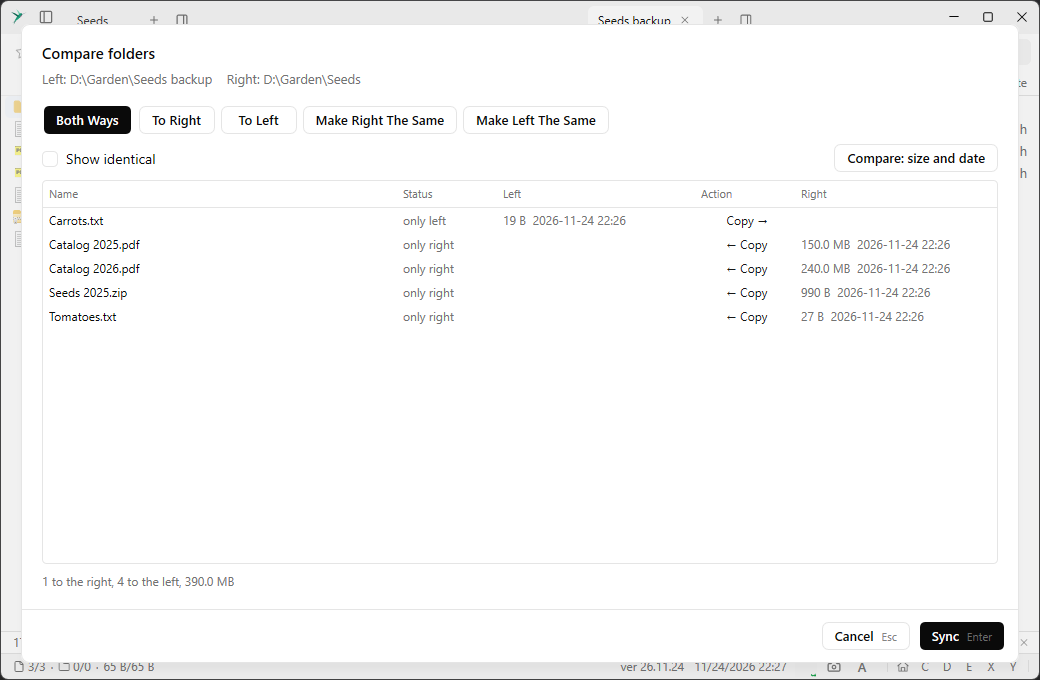
Compare And Sync Folders
With a folder in each of two panes, Compare And Sync Folders lists what is different in them and below them, and makes them the same: in both directions, in one, or as a mirror that also deletes. Each row’s action can be changed, and nothing happens until Sync. Either side can be on online storage.
Find Duplicates
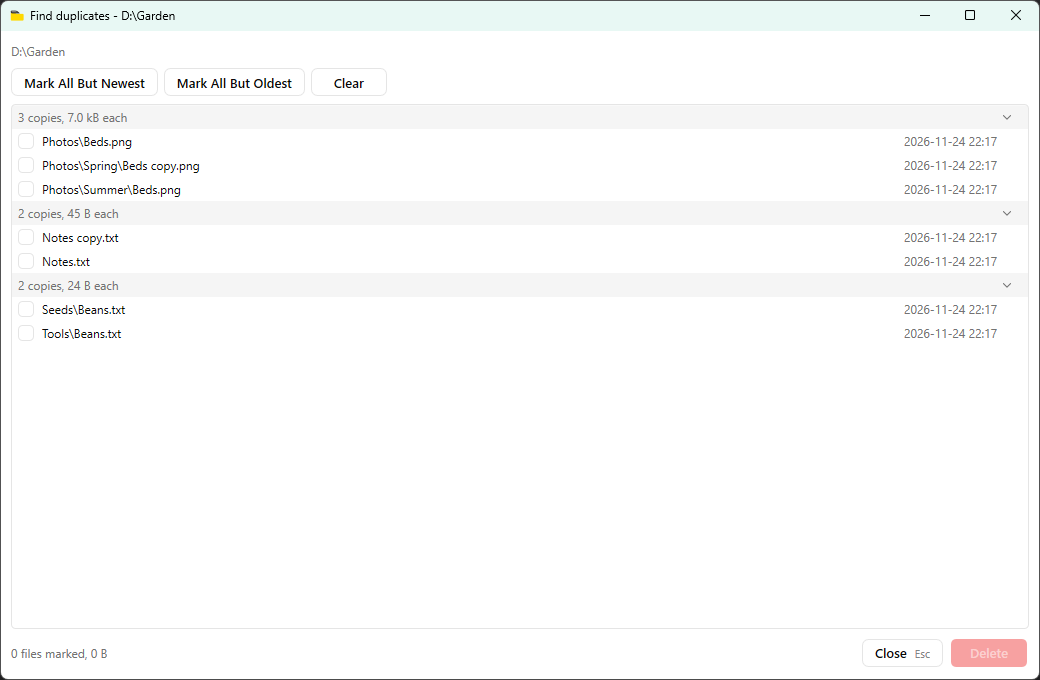
Find Duplicates lists files with the same content below the current folder, in a window of its own, so the app stays usable while it works. Duplicates show up as they are found. Mark copies with a click or Mark All But Newest / Mark All But Oldest, and Delete removes them, never every copy of a file. Hard links are told apart from real copies.
Hex view
F3 on a binary or very large file shows its bytes, and Shift + F3 (View As Hex) shows any file that way. It reads only what is on the screen, so any size opens at once. Ctrl + G goes to an offset, and Ctrl + F searches for text or bytes such as 0x4D 5A.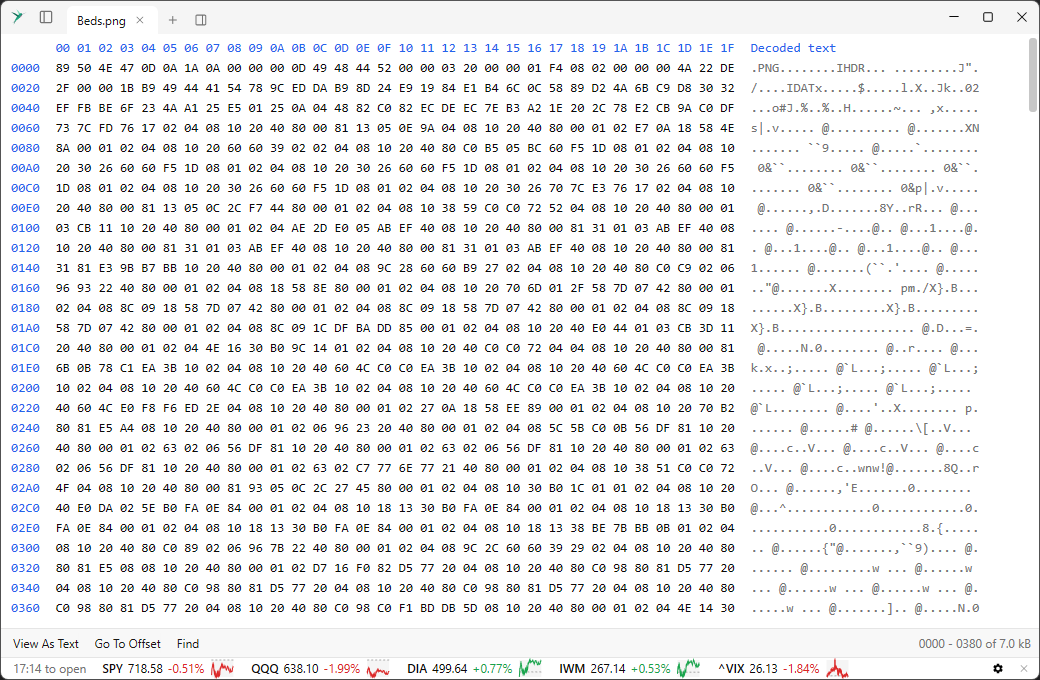
Checksums
Create Checksums writes a
.sha256, .sha1 or .md5 file for the selected files, in the format of sha256sum and md5sum. Verify Checksums on such a file lists the files that are different or missing.Flat view
Flat View (
Ctrl + Shift + B) lists all files below a folder in one list, as the filter directive :flat. You can select, copy, delete and multi-rename in it.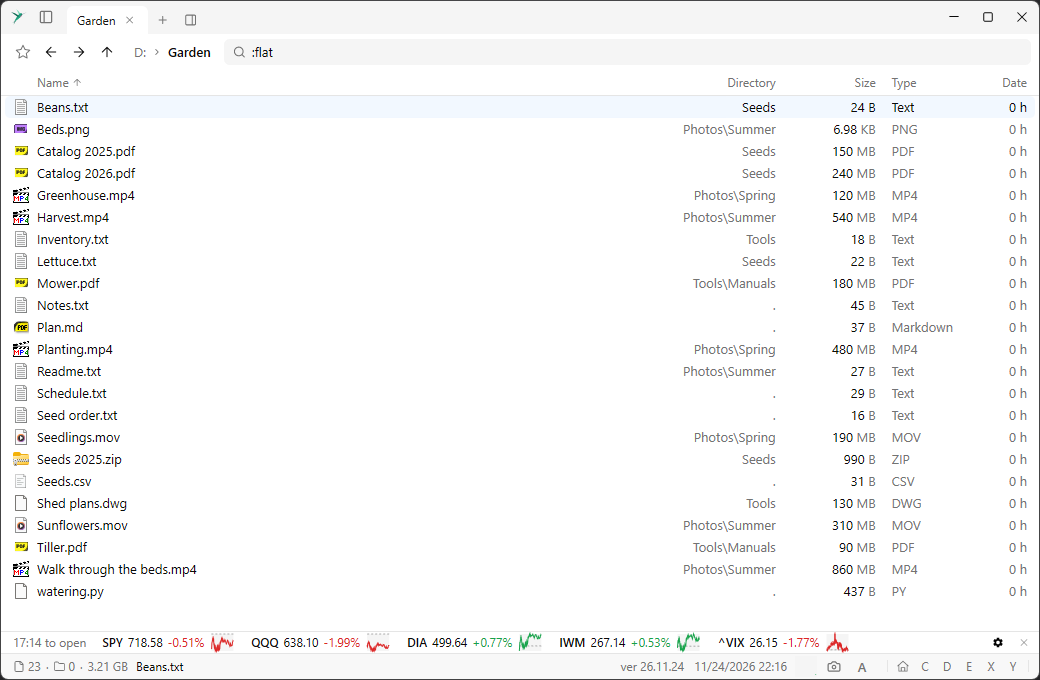
Monitor processes
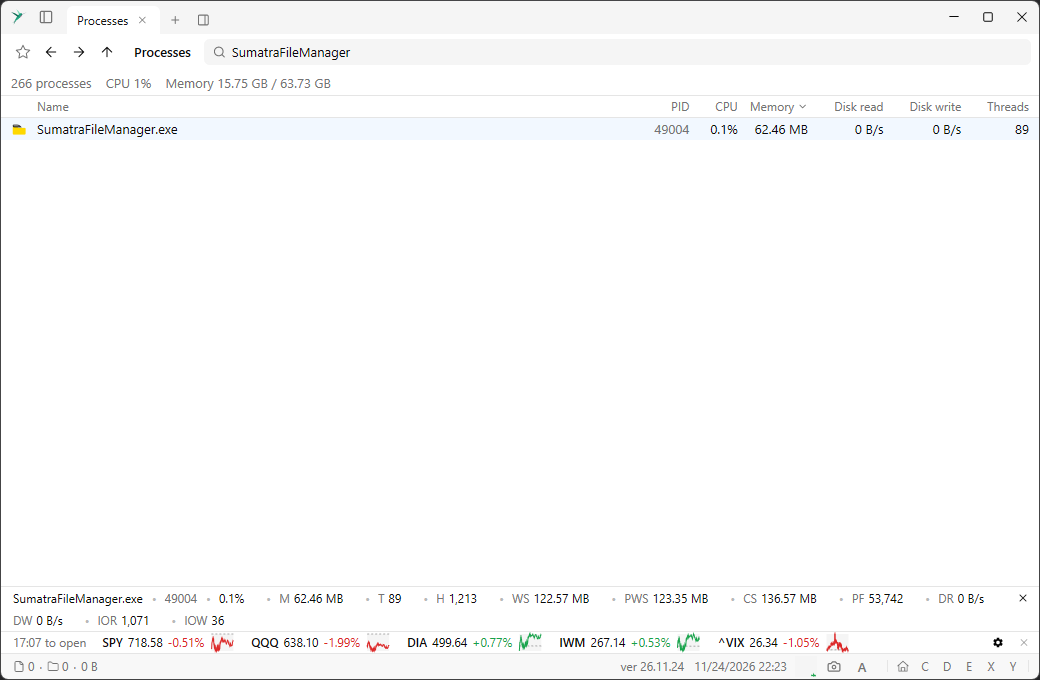
Monitor in the context menu of Processes, or Monitor Process in the command palette, keeps a compact panel at the bottom of the window for each monitored process: CPU, memory, threads, handles, working set, commit size, page faults and I/O, each with a tooltip. It goes away when the process exits.
Kill all processes with the same name
When several processes have the same name, the context menu of Processes has Kill 5 chrome.exe processes, which ends all of them at once.
Processes memory like Task Manager
The Memory column of Processes shows active private memory, as Task Manager does, and the preview shows all its memory numbers.
Drop preview when moving tabs between windows
Dragging a tab over another window highlights where it will land, with its title, or marks where it goes in the tab bar.
Copy the folder's path
With no file selected, the context menu has Copy as path for the folder itself, and the right arrow opens the menu at the mouse.
Drives and places in the palette's $ list
The
$ list in the command palette has the drives, online storage and places of the home view after the favorites. A row that matches exactly comes first, so $c: selects the C: drive.Tips
A row above the status bar shows a tip about a feature that isn’t obvious, with links to the manual or the command. Double-click it for another tip; its x, or the
ShowTips setting, turns tips off.