Tabs
Tabs sit in the window caption.
Ctrl + T opens a tab, Ctrl + W closes it, and the + after the last tab opens another. Each tab has its own folder, history and selection. Drag a tab to reorder it, drag it out to make a new window, or drop it on another window to move it there.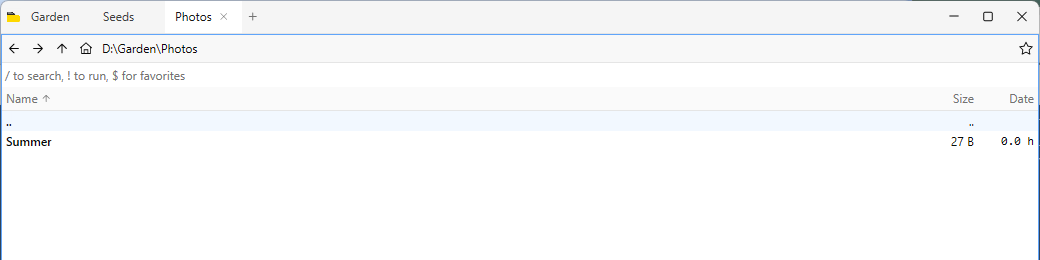
Split panes by docking tabs
Drop a tab on the edge of the file list to split the window: the tab becomes a pane on that side. Each pane keeps its own tabs in the caption, lined up with the pane. Drag the splitter between panes to resize them.
Breadcrumbs in the path bar
The path bar shows the current path as breadcrumbs. Click a part to go to that folder.
Ctrl + L edits the path as text.
Drives, clock, battery and CPU in the status bar
The right end of the status bar has a CPU usage graph, the battery level, the clock, the screenshot button, a button for the home view and one for each drive.
