Copy and move between any two file systems
Copy and move work between any two file systems, such as from S3 to SFTP, with a progress row. A native copy or move is used when the file system has one.
Keys that open the command palette
Typing
>, @, #, $, % or ! in the file list opens the command palette on that list. The star in the path bar opens it on favorites, with rows to add or remove the current folder and the selected item. The palette shows shortcuts as keycaps.File type icons and check boxes
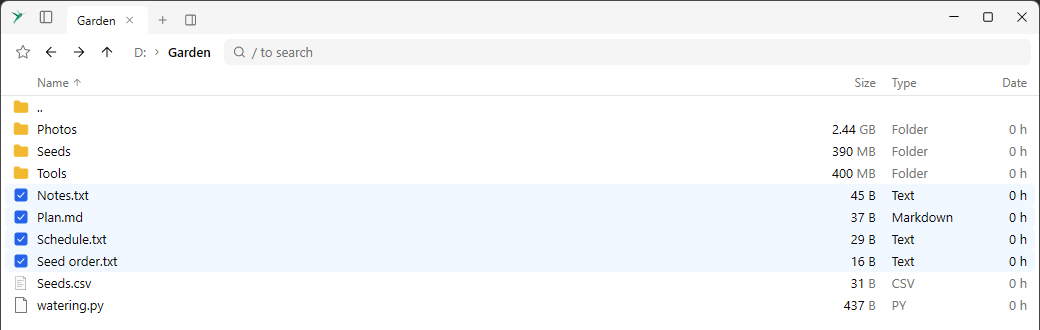
The file list has an icon column: folders are yellow, files have the system’s icon for their type. When several rows are selected, their icons turn into check boxes.
Home view sections
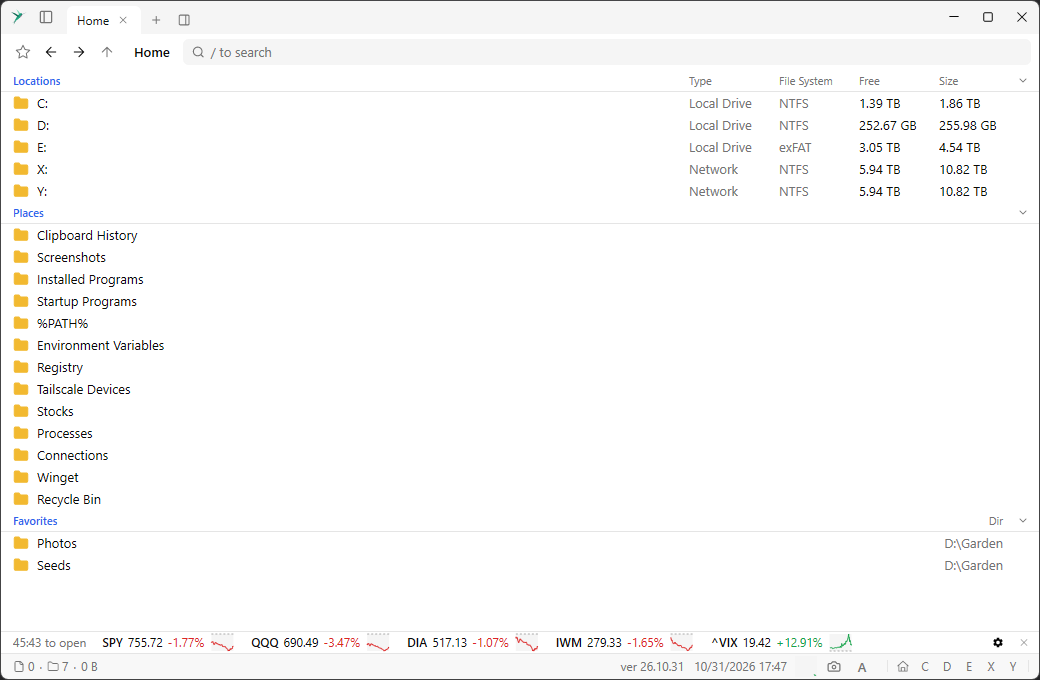
Each section of the home view has its own columns and collapses with a click on its header. Drives show type, file system, free space and size, and drop columns when the view is narrow. Dragging a favorite changes the order of favorites.
About
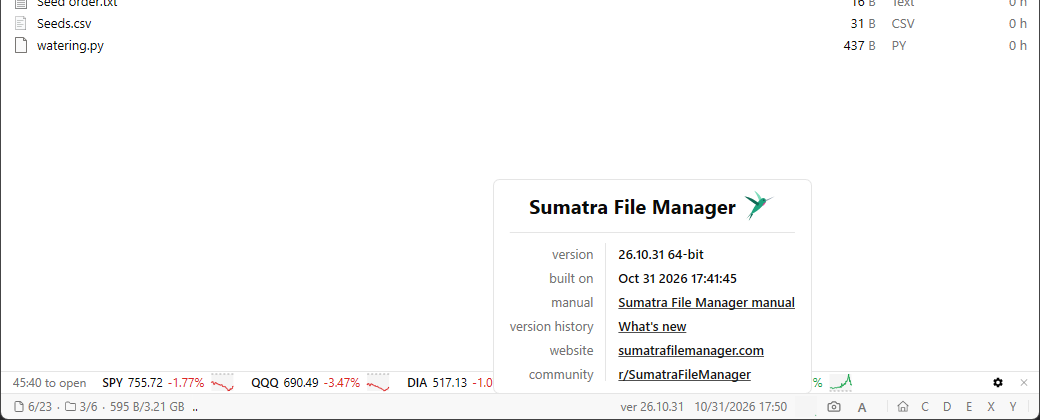
About Sumatra File Manager opens a window with the version and links. Hovering the version number in the status bar shows the same as a popup.
Tooltips
Tooltips show next to the hovered element, with the command’s shortcut as a keycap. A drive’s tooltip shows its file and folder counts with icons.
Status bar icons for online storage
Each configured online storage has an icon in the status bar, after the drives. Its tooltip shows the name and what is known about its size.
Delete is Shift + Del
The Delete command is now
Shift + Del, and context menus show the shortcuts of the current bindings.Clipboard Spy setting
The
ShowClipboardSpy setting shows a one-line panel with clipboard changes. It is off by default.