Redesigned screenshot window
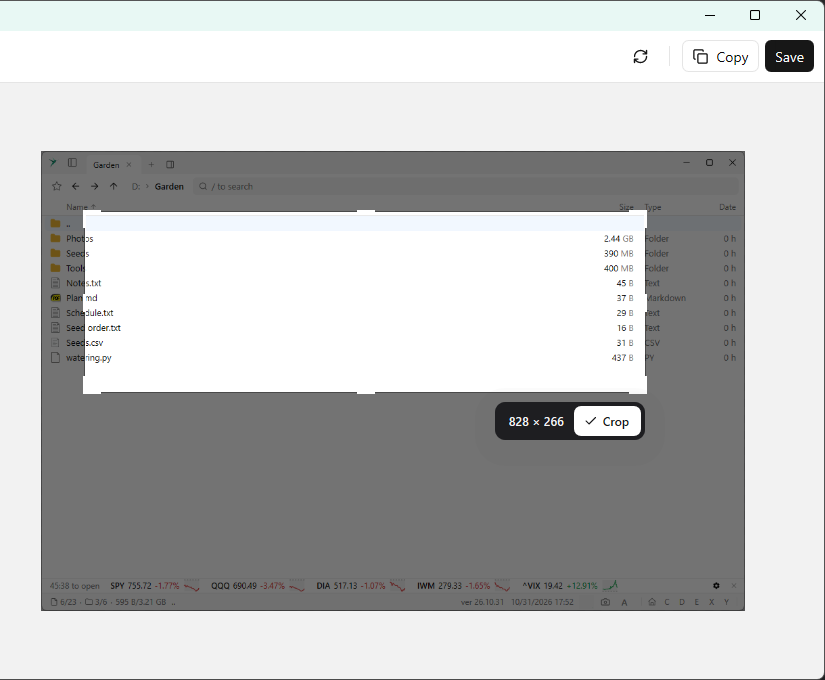
The screenshot window has a quiet canvas, labeled thumbnails on the left and an icon toolbar with Copy and Save. A crop dims what’s outside the selection and shows its size with a Crop button. Dragging an edge resizes the image, also past the canvas.
Authenticator
Authenticator, also the A icon in the status bar, shows one-time codes. Import accounts from a Google Authenticator export link,
otpauth:// links or JSON. Export, Remove All and Import more manage them.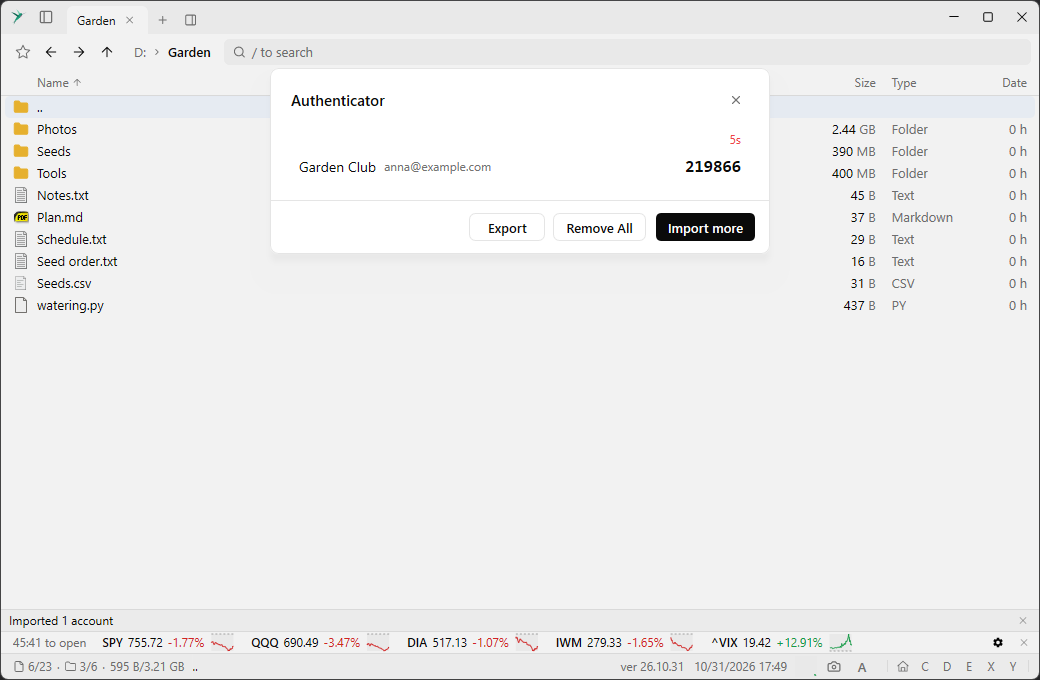
Add online storage
Add online storage, in quick access and in the command palette, opens a list of every kind of storage to connect to. Type to filter it, then press
Enter to configure one.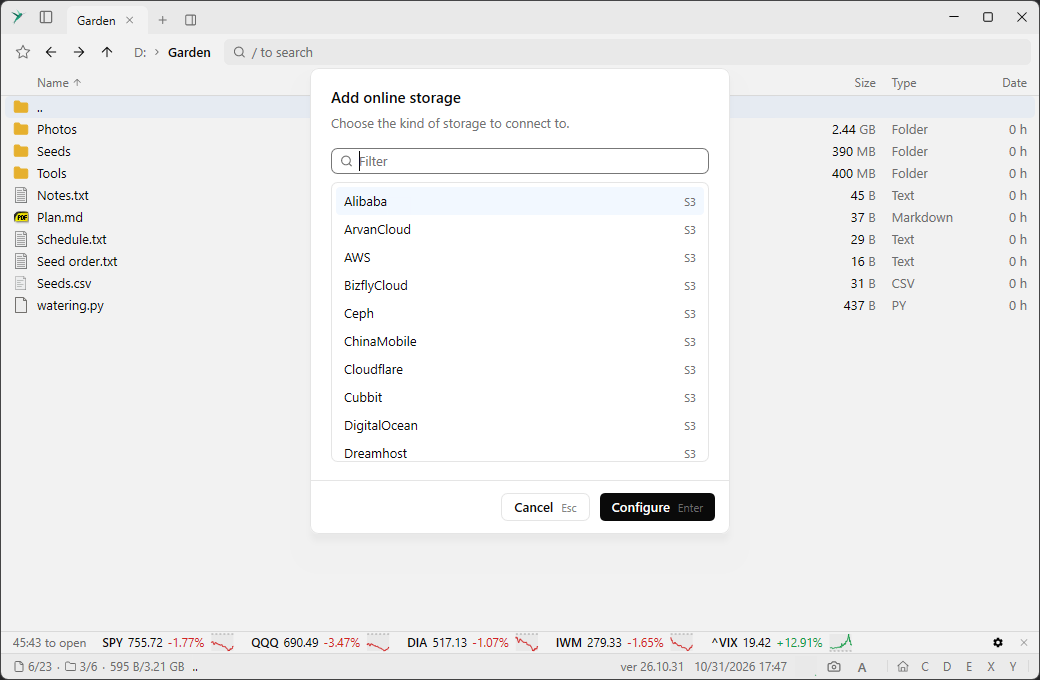
One look for all dialogs
All dialogs and their buttons have the same plain look.
Esc closes a dialog wherever the focus is, and Tab stays inside it.Quick access from the keyboard
Ctrl + B opens quick access with the focus in its filter. Up and Down move through the list and Enter opens the selected item. Clicking a section title collapses it.Memory graphs in the CPU panel
The CPU panel has graphs for memory and commit, on the theme’s background.
Activity Spy
Toggle Activity Spy shows a row above the status bar with the requests S3, Put.io, Pixeldrain and SFTP send, their answers and how long they took.