Ctrl + K opens the command palette. Type a few letters, then Enter to run the selected row. Esc closes it, and so does a click outside the panel.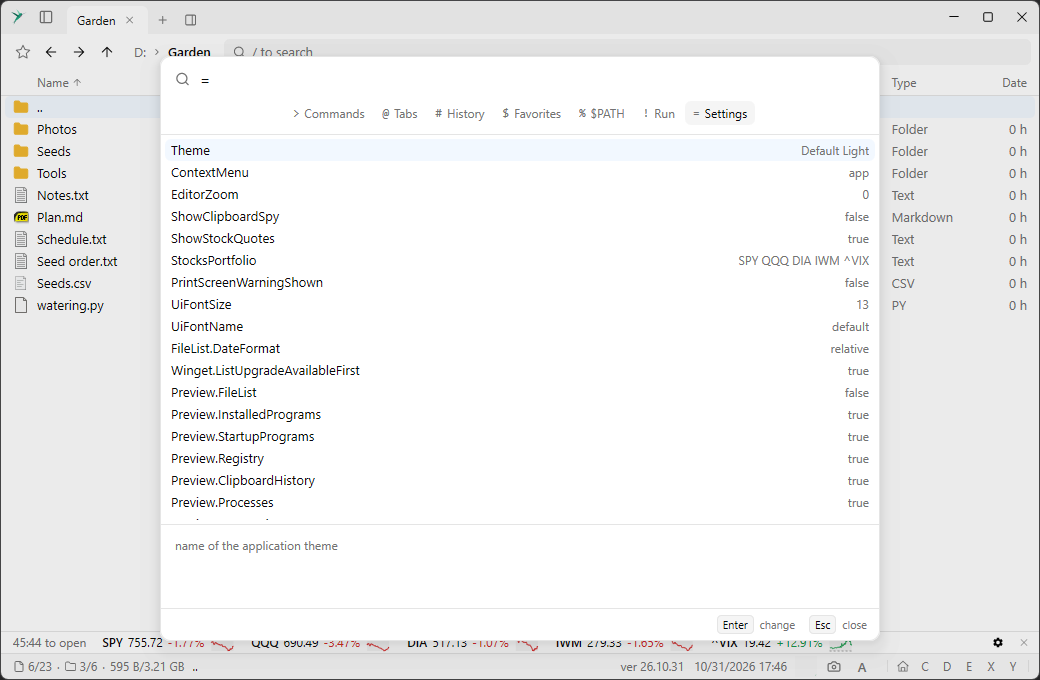
The row under the search field shows the other lists. Click one, or type its character first:
>Commands, the default.@Tabs, in every pane.Enterswitches to the tab,Delcloses it.#History, the folders the current tab has shown, newest first.$Favorites, with rows to add or remove the current folder and the selected file or folder first, and after the favorites the locations and places of the home view.Delremoves a favorite. The star in the path bar opens this list.%$PATH, the directories on%PATH%.!Run, which runs a program.Tabcompletes the selected row,Delremoves a row from the run history.=Settings.
Typing
>, @, #, $, %, !, or = in the file list opens the palette on that list.A row that is exactly what you typed comes first, so
$c: selects the C: drive.Up, Down, Page Up, and Page Down move the selection. Each row shows its shortcut, path, or value on the right.Settings #
= lists the settings with their values; a value you changed is bold and listed first. The box under the list describes the selected setting.Enter on a setting asks for a value: Theme lists the themes, any other setting takes what you type. Enter again applies it, Esc goes back to the list. = in the file list opens this list too.Some you may want:
UiFontSizeandUiFontNameset the text of the app.Ctrl + +,Ctrl + -andCtrl + 0change the size.OutlineFileIconsandBoldDirectoryNameschange the file list.FileList.DateFormatandStatusBarDateTimeFormatset the date formats.ContextMenuchooses between the app’s menu and the Windows Shell menu.ShowStockQuotesandStocksPortfoliocontrol the stock quotes.ShowTipsshows a tip above the status bar. Double click a tip for another one. Its x turns tips off, and this setting turns them back on.
Commands that need a selection, such as Rename or Delete, stay out of the list until something is selected. Focus Next Pane and Focus Previous Pane stay out until the window is split.
The same commands are listed under Keyboard shortcuts.