Sumatra File Manager can browse S3-compatible storage, Put.io, Pixeldrain and SFTP. A connection shows under Locations in the home view and in quick access, and has an icon in the status bar.
Add online storage, in quick access or the command palette, lists every kind of storage. Type to filter it, then
Enter to configure one.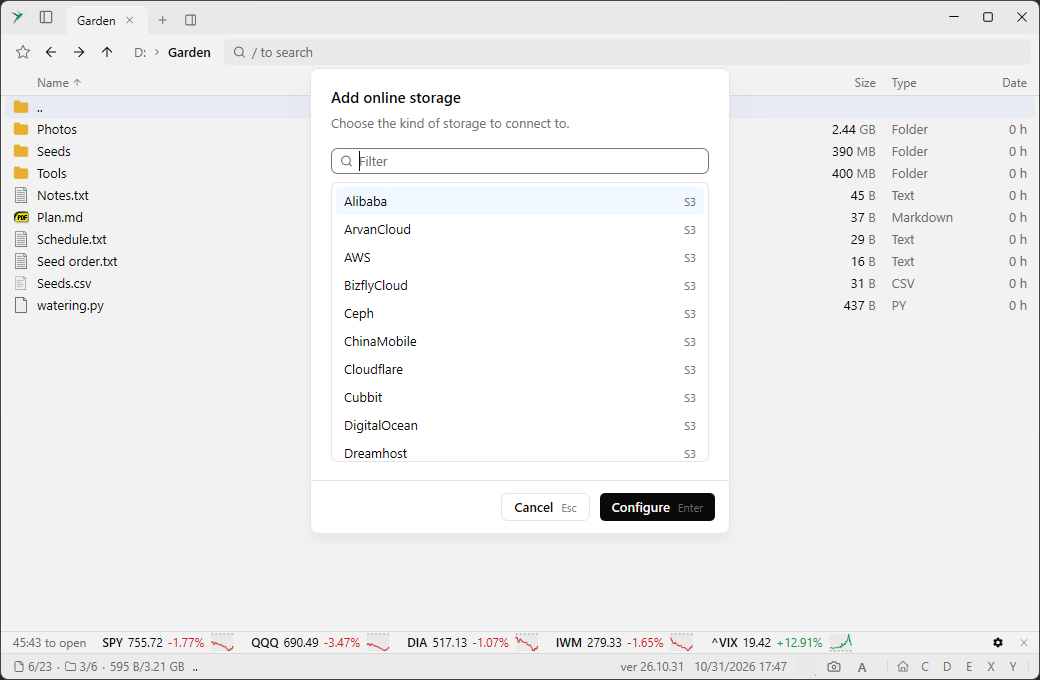
- S3. Name, access key, secret, bucket and endpoint. The presets, such as Add AWS (S3) and Add Cloudflare (S3), fill in what they can. The credentials are tested when you press OK.
- Put.io. Signs in through your browser.
- Pixeldrain. uses an API key.
- SFTP. Host name or IP address, port, user, and a password or a private key with an optional passphrase. It suggests hosts and keys from
~/.ssh.
What works #
- Folder sizes, and recursive search with
:r. See Filter. - Favorites and tabs can point at a remote folder.
F3views a file, using a local copy.- Rename, delete and New Directory, where the service supports them. A command that isn’t supported is disabled, and without a Recycle Bin the context menu only has Permanently Delete.
- Copy and move between any two file systems, with
Ctrl + C,Ctrl + V,F5andF6.
On S3, New Directory creates a hidden file named
.sfm-dirkeep.txt, which isn’t listed.Requests #
S3 and Pixeldrain scan the whole store in the background when it is first listed, and keep the result, so moving between folders sends no requests. Folders you changed or refreshed with
Ctrl + R ask the server. Put.io remembers its folders, so showing one takes one request. SFTP keeps a listing for 5 minutes.Toggle Activity Spy shows the last request in a row above the status bar. Toggle Activity Log shows a panel with all of them.